

Introduction: When access works, but the operation doesn’t#
The tenant already requires multifactor authentication. Conditional Access policies are in production. Even so, the IT team starts every Monday copying data from tickets, adding people to groups, and asking who approved a specific access. On Friday, someone discovers an active administrative account from last year’s project. Security has improved, but the operation remains dependent on memory, spreadsheets, and luck.
This is where security and governance separate. Security decides if an access attempt can proceed. Governance answers who should have access, for what reason, for how long, and who needs to review that decision.
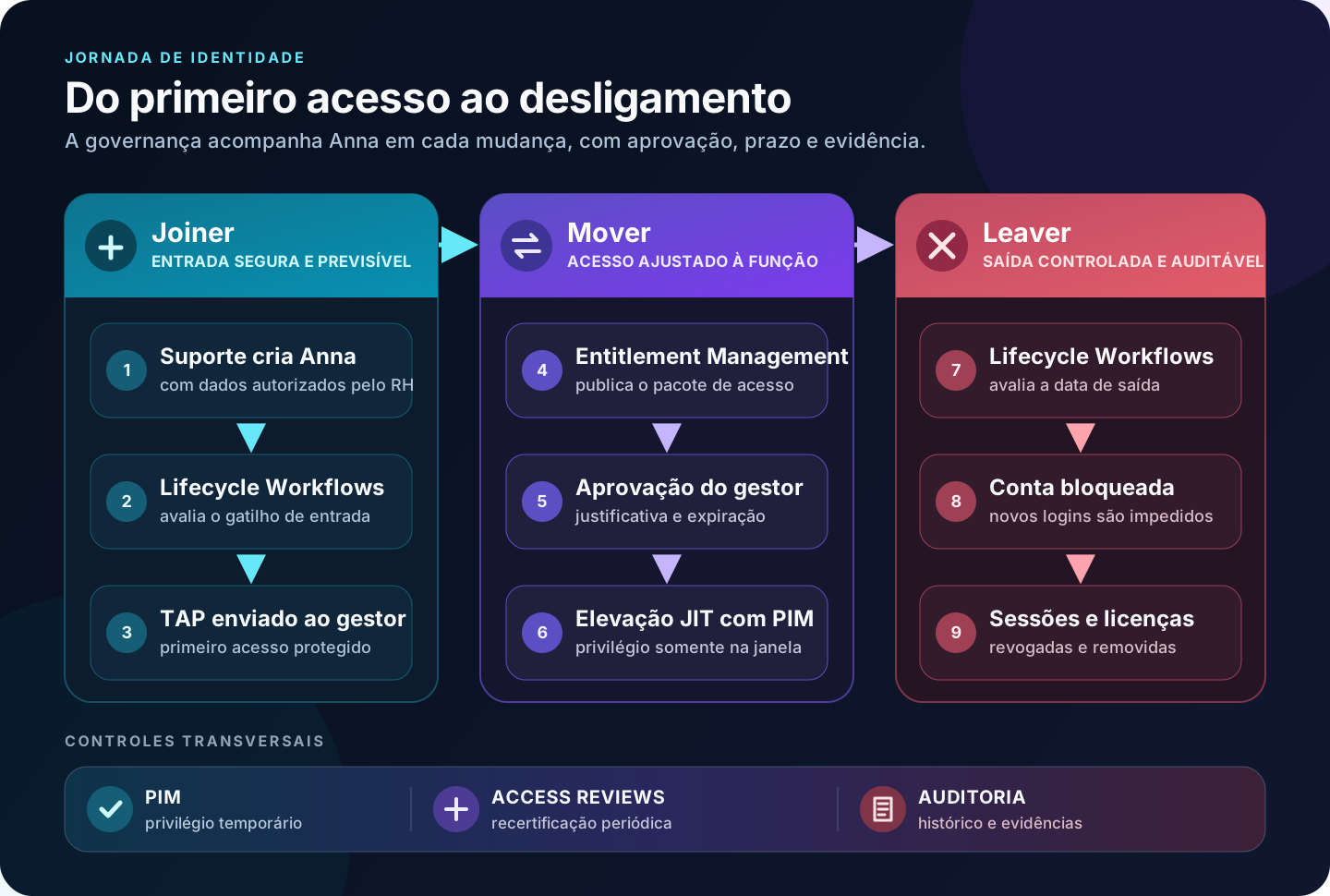
Dr. Anna Bette Bírquin, Senior Researcher at the fictional Umbrella do Brasil S.A., will work in the NEST Laboratory. In the umbrella.com.br domain, her username and UPN will be anna.birquin and anna.birquin@umbrella.com.br. In her journey, she takes on new responsibilities, administers Exchange Online during a maintenance window, and later leaves the organization. The goal is to make IT almost invisible for Anna. The right access appears when needed, asks for approval when it should, and disappears when it loses its justification.
We will call this journey JML, an acronym for Joiner, Mover, and Leaver (representing entry, movement, and departure). We will use Lifecycle Workflows for date-driven tasks, Entitlement Management for governed self-service, Access Reviews for recertification, and Privileged Identity Management (or PIM, a service that provides time-based and approval-based role activation) for temporary privilege.
Expected result#
In the end, you will have a verifiable lab to:
- prepare Anna’s onboarding based on
employeeHireDate; - deliver an access package approved by the manager when she changes roles;
- make Exchange Administrator eligible, without permanent active privilege;
- review the package assignments quarterly;
- revoke administrative privileges, block the account, revoke sessions, and remove access and direct licenses upon departure;
The scripts are in the repository Automatizando o ciclo de vida JML e PIM com Entra ID Governance. They start in simulation mode and do not include credentials, secrets, or real identifiers.
How data enters the lab#
Without HR integration, onboarding starts with a ticket. The analyst runs 05-new-cloud-user.ps1 with approved data and RequestId. This value appears in the output, without being recorded in Entra or a local log (in production, persist this ID in an appropriate attribute to maintain an audit trail. For cloud-only users, you can use an onPremisesExtensionAttributes.extensionAttributeX; for synchronized identities, record the value in the authoritative source). When the workflow is scheduled and the identity meets the execution conditions, Lifecycle Workflows will find the created account and execute the Joiner process; it does not run the .ps1 file.
The identity journey and JML architecture#
The Joiner phase begins before the first login. Data like department, manager, and hire date must be correct for a rule to find Anna. The Mover phase happens when a role, project, or responsibility changes. This is the phase where privilege creep (the silent accumulation of old permissions) emerges. The Leaver phase ends access and sessions according to the date and risk of the departure.
PIM and Access Reviews span these three phases. PIM reduces the time a privilege remains active. The review periodically asks if a past decision is still valid.
| Component | Automated decision |
|---|---|
| Lifecycle Workflows | When to run entry or exit tasks and for which people |
| Entitlement Management | Which resources form a package, who requests, and who approves |
| PIM | When an eligible privilege can be active and for how long |
| Access Reviews | Who periodically confirms if the access is still needed |
| Microsoft Graph PowerShell | How to query, create, and validate configurations repeatably |
Prerequisites and lab preparation#
Use a fictional identity, a pilot department, and resources without production data. Keep two emergency accounts outside the lab’s filters, groups, and administrative units. MFA and Conditional Access policies must already exist, since configuring them is not part of this article.
Licenses, roles, and scopes#
To reproduce the scenario, consider Microsoft Entra ID Governance or Microsoft Entra Suite. Some capabilities also exist in Microsoft Entra ID P2, but Lifecycle Workflows is not included in P2 alone. Validate the contract before the pilot.
| Step | Least privilege administrative role | Main delegated scope |
|---|---|---|
| Create Anna and assign manager | User Administrator | User.ReadWrite.All |
| Lifecycle Workflows | Lifecycle Workflows Administrator | LifecycleWorkflows.ReadWrite.All |
| Catalog and package | Identity Governance Administrator or Catalog owner | EntitlementManagement.ReadWrite.All |
| Package policy | Access Package Manager or a higher role in the catalog | EntitlementManagement.ReadWrite.All |
| PIM eligibility and policy | Privileged Role Administrator | RoleEligibilitySchedule.ReadWrite.Directory |
| Activation by Anna herself | Eligible user | RoleAssignmentSchedule.ReadWrite.Directory |
| Resource discovery | Appropriate reader for each object | User.Read.All, Group.Read.All, and Application.Read.All |
| License query | Directory Reader or equivalent role | LicenseAssignment.Read.All |
An OAuth scope alone does not grant the administrative role. The account needs both authorizations. A Catalog owner adds resources, while an Access Package Manager creates packages with available resources.
Administrative workstation#
PowerShell 7 is recommended. The Microsoft Graph PowerShell SDK also works on Windows PowerShell 5.1, but do not mix versions and profiles during the lab.
$PSVersionTable.PSVersionInstall-Module Microsoft.Graph -Scope CurrentUserGet-InstalledModule Microsoft.Graph* |  Sort-Object Name |  Select-Object Name, Version
git clone https://github.com/tkusal/Automatizando-o-ciclo-de-vida-JML-e-PIM-com-Entra-ID-Governance.git iam-governance-labSet-Location .\iam-governance-lab.\scripts\00-connect-graph.ps1
The last command requests only reading permissions. For writing, choose between UserProvisioning, Lifecycle, Entitlement, PimEligibility, and PimActivation. Confirm the account, tenant, and scopes with Get-MgContext.
Prepare Anna and the resources#
Using the User Administrator role, the analyst transfers the approved ticket data to the script:
.\scripts\00-connect-graph.ps1 -WriteProfile UserProvisioning
.\scripts\05-new-cloud-user.ps1 `  -RequestId '<REQUEST_ID>' `  -UserPrincipalName 'anna.birquin@umbrella.com.br' `  -DisplayName 'Anna Bette Bírquin' `  -GivenName 'Anna' `  -Surname 'Bírquin' `  -JobTitle 'Pesquisadora Sênior' `  -Department 'Laboratório NEST' `  -UsageLocation 'BR' `  -ManagerUserId '<MANAGER_USER_ID>' `  -EmployeeHireDate '2026-09-01T12:00:00Z'
Without -Apply, the script simulates the action. Later, repeat with -Apply -WhatIf and finally with -Apply. It validates the domain, duplication, manager, and email. It generates an unrevealed password, creates the account, and assigns the manager. Anna will use the TAP (Temporary Access Pass, a time-limited passcode) for bootstrapping. If the local AD is the authoritative source, do not use the script. Create the account there and let the synchronization propagate it.
| Data | Example value | Why it matters |
|---|---|---|
department | Laboratório NEST | Limits the workflows scope |
employeeHireDate | 2026-09-01T12:00:00Z | Triggers the Joiner process |
manager | Anna’s manager ID | Receives the TAP, approves, and reviews |
Manager’s mail | Valid address | Allows the delivery of notifications |
usageLocation | BR | Prevents later failures in license assignment |
Important
Fill in
usageLocationbefore assigning licenses. Use the two-letter country or region code, likeBR, to validate the legal availability of services. Without this, direct or group assignments may fail.
Use UTC and a time consistent with working hours. In production, the authoritative source maintains the attributes.
$Anna = Get-MgUser -UserId 'anna.birquin@umbrella.com.br' `  -Property Id,DisplayName,Department,EmployeeHireDate,EmployeeLeaveDateTime,Mail,UsageLocation
$Anna | Format-ListGet-MgUserManager -UserId $Anna.Id | Format-List Id,AdditionalPropertiesGet-MgSubscribedSku | Select-Object SkuPartNumber, ConsumedUnits
Get-MgSubscribedSku above only queries availability. To actually assign them, use Microsoft 365 admin center > Users > Active users > Anna > Licenses and apps. In this step, employeeLeaveDateTime will be empty. It will only be filled upon departure.
Prepare a catalog named Laboratório NEST, a Microsoft 365 group associated with Teams, a SharePoint site, an enterprise application in Entra, and distinct users for approval, fallback, and PIM. The application must expose a role, such as Default Access.
Day one: Lifecycle Workflows in the Joiner phase#
A Temporary Access Pass, or TAP, is a temporary credential used during the first registration of authentication methods. In our flow, a native task generates a single-use TAP for eight hours and sends it to the manager. The TAP policy must allow 480 minutes and include Anna or the pilot group.
The 480 minutes are a didactic value for this lab. In production, adjust the TAP lifetime to the actual onboarding window and the organization’s security policy, using the shortest operationally appropriate period. The Lifecycle Workflows task accepts values between 10 and 43,200 minutes. The TAP serves for the first access, recovery, and registration of phishing-resistant passwordless methods, like passkeys and Windows Hello for Business (important: for a single-use TAP, the registration of a new passwordless method must be completed within 10 minutes after login). It is not a continuous credential nor a password replacement.
This strategy also aligns with the transition of Microsoft Entra ID authentication methods. Starting September 1, 2026, users enabled for SMS or voice calls will be automatically enabled for passkeys and encouraged to register them. On February 1, 2027, Microsoft will retire the native delivery of SMS and voice; organizations that still need these channels will have to use a customer-managed telecommunications provider. Therefore, new onboarding flows should prioritize phishing-resistant methods, such as passkeys and Windows Hello for Business.
Before configuring#
In the Microsoft Entra admin center, open Entra ID > Authentication methods > Policies > Temporary Access Pass. Enable the method for the pilot group. Under Configure, set the minimum to 480 minutes or less, the maximum to 480 or more, a single use compatible with the lab, and length according to internal policy. Do not include emergency accounts.
The Generate TAP and Send Email task requires a valid manager and email. It is also designed for new identities without authentication methods, previous sessions, or administrative roles. If Anna has already used the account, create another disposable identity for the test.
Configure via portal#
- Go to ID Governance > Lifecycle workflows > Workflows > Create workflow.
- Select the onboarding template that generates a TAP and sends an email to the manager.
- Name it
JML | Onboarding | Laboratório NESTand keep the workflow enabled. - In scope, use a rule limited to
department eq 'Laboratório NEST'. - Choose the trigger based on
employeeHireDate, with a zero-day offset. - In the TAP task, specify a 480-minute duration and single use.
- Finish with the schedule turned off.
Automate with simulation#
The script queries the native task definition, builds the payload, and only creates the workflow with -Apply. The first command below only prints the JSON. The second passes through the WhatIf protection and also does not change the tenant.
.\scripts\10-new-joiner-workflow.ps1 -Department 'Laboratório NEST'
.\scripts\10-new-joiner-workflow.ps1 `  -Department 'Laboratório NEST' `  -Apply `  -WhatIf
After reviewing, run with -Apply, still without -EnableSchedule. In the portal, open the workflow and choose Run on demand > Add users > Anna > Run workflow. The on-demand execution ignores the filter and the date, so check the selected identity. Wait for the history to show Completed and confirm that the manager received the TAP. Only then should you enable the schedule.
Note
A date-based trigger does not execute at an exact time. The schedule is evaluated every three hours by default, with a configurable interval of one to 24 hours. Upon reaching
employeeHireDateoremployeeLeaveDateTime, the identity enters the next applicable cycle. Entra maintains a three-day recovery window for missed conditions. In a lab environment, run on demand and monitor the history.
Validate and revert#
In Workflow history, check the summaries by user, execution, and task. A created workflow does not prove it found the right person. If there is an error, keep the schedule off, fix the attribute, manager, or TAP policy, and try again with a new identity. To revert the pilot, disable the schedule, delete the test workflow, and remove the TAP from the user in Authentication methods. An already used or expired TAP should not be reused.
The responsibility change and self-service in the Mover phase#
Months later, Anna takes on a new line of research within the NEST Laboratory. Her job title remains Senior Researcher, but the set of resources changes. The manual model would add new groups and leave the old ones for a future cleanup. Entitlement Management changes the unit of decision. Instead of granting isolated resources, we publish the package Laboratório NEST | Pesquisadora Sênior with association to Teams, access to SharePoint, and a role in the enterprise application.
The package must not include Exchange Administrator. Business access and administrative privilege have different risks and deserve different flows.
Locate the identifiers#
The script needs real IDs for the catalog, group, service principal, and fallback. Query them instead of copying values from other documentation.
Get-MgEntitlementManagementCatalog -All |  Select-Object DisplayName, Id
Get-MgGroup -Filter "displayName eq 'Laboratório NEST | Teams'" |  Select-Object DisplayName, Id, GroupTypes
Get-MgServicePrincipal -Filter "displayName eq 'Aplicativo NEST'" |  Select-Object DisplayName, Id, AppId
Get-MgUser -UserId '<APPROVER_USER_PRINCIPAL_NAME>' |  Select-Object DisplayName, Id, UserPrincipalName
The expected ID for the application is the service principal Id, not the app registration AppId. For SharePoint, use the full site URL, without a trailing page or library.
Configure via portal#
- Open ID Governance > Entitlement management > Catalogs and create or select
Laboratório NEST. - Under Resources, add the group or Teams, the enterprise application, and the SharePoint site.
- Open Access packages > New access package. Enter
Laboratório NEST | Pesquisadora Sênior, the description, and the catalog. - In Resource roles, choose
Memberfor the group and SharePoint, and the role defined by the application. - In Requests, select users in your directory and enable requests from the user themselves.
- Require approval, choose Manager as approver, add the fallback, and give five days for the decision.
- Require justification from the approver and set the assignment expiration to 180 days.
- Create the policy and keep the package visible only to the population that should request it.
The manager comes from the manager attribute. If not found, the configured fallback receives the request. Entra does not automatically pick the administrator. Therefore, the script requires FallbackApproverUserId and an explicit responsible person. Test the request in the My Access portal with Anna (in her session) and confirm the notification and approval with the manager’s account (in another isolated session).
Automate with simulation#
.\scripts\20-new-access-package.ps1 ` -CatalogId '<CATALOG_ID>' ` -GroupId '<TEAM_GROUP_ID>' ` -ApplicationServicePrincipalId '<SERVICE_PRINCIPAL_ID>' ` -SharePointSiteUrl '<SHAREPOINT_SITE_URL>' ` -FallbackApproverUserId '<APPROVER_USER_ID>' ` -AccessPackageName 'Laboratório NEST | Pesquisadora Sênior' ` -ApplicationRoleName '<APPLICATION_ROLE_NAME>'In the DryRun, missing resources are shown as proposed requests. Use -Apply -WhatIf to check targets and then -Apply only in the lab tenant. The applied output provides the AccessPackageId and AssignmentPolicyId. Save both for the quarterly review.
Validate and revert#
Request the package as Anna, approve it as the manager, and confirm the assignment in the three resources. Also verify the expiration date and the request history. To undo, first remove Anna’s assignment. Then hide or disable the policy. Delete the package and resources from the catalog only after confirming there are no other dependent policies or assignments. Deleting the catalog too early turns a simple fix into an orphan access hunt.
Zero Standing Privileges with PIM#
Zero Standing Privileges means not keeping administrative privileges active without necessity. A Privileged Role Administrator makes Anna eligible for Exchange Administrator for 90 days. Anna activates the role for up to two hours before the maintenance. The role policy decides if the platform requires MFA, justification, a ticket, and approval.
Configure the policy and eligibility#
- Go to ID Governance > Privileged Identity Management > Microsoft Entra roles > Roles.
- Open Exchange Administrator > Role settings > Edit.
- Set the maximum activation duration to two hours.
- Require MFA, justification, and ticket number, keeping in mind that PIM does not validate it in the Service Desk system.
- Require approval and choose at least two specific approvers.
- Review notifications for activation, assignment, and renewal, then select Update.
- In Assignments > Add assignments, select Anna and mark Eligible, with start and expiration in 90 days. Do not use
Active.
Avoid an administrative lockout. Keep active emergency accounts and approvers capable of processing the request. Settings are specific per role, so changing Exchange Administrator does not alter other roles.
Automate and activate#
Perform the operations in separate sessions. The first belongs to the Privileged Role Administrator. The second belongs to Anna herself.
# $Anna was resolved by the UPN anna.birquin@umbrella.com.br during preparation# Administrative session, simulation only.\scripts\30-configure-pim-exchange.ps1 `  -UserId $Anna.Id `  -RoleDisplayName 'Exchange Administrator' `  -CreateEligibility `  -EligibilityJustification '<APPROVED_JUSTIFICATION>'
# Anna's session, simulation only.\scripts\30-configure-pim-exchange.ps1 `  -UserId $Anna.Id `  -RoleDisplayName 'Exchange Administrator' `  -Activate `  -ActivationHours 2 `  -Justification '<REASON>' `  -TicketNumber '<TICKET_NUMBER>' `  -TicketSystem '<TICKET_SYSTEM>'
Add -Apply -WhatIf before the real application. Anna can also open PIM > My roles > Microsoft Entra roles > Eligible assignments > Activate, provide the duration, justification, and ticket, complete MFA, and wait for approval.
Validate and revert#
Confirm that the assignment appears as eligible before activation, as active during the window, and as expired at the end. Validate the audit logs and the approval. Anna can deactivate the role early in My roles. To revoke the design, remove the eligibility in PIM > Microsoft Entra roles > Assignments. Do not delete or alter the internal definition of the role.
Continuous audit with Access Reviews#
An approval responds to today’s context. The access review asks if the answer is still valid three months later. For the NEST Laboratory package, the manager will be the primary reviewer and a specific user will be the fallback.
Configure via portal#
- Open ID Governance > Entitlement management > Access packages > Laboratório NEST | Pesquisadora Sênior > Policies.
- Edit the policy and, under Lifecycle, enable a recurring review.
- Choose the person’s manager as reviewer and set up the fallback.
- Set recurrence to every three months, duration to 14 days, enable recommendations, and require justification.
- In the pilot, choose Keep access when no one responds. After measuring notifications and manager participation, evaluate Remove access.
- Save and confirm the date of the first occurrence.
The script’s default mode also uses keepAccess. Automatic removal needs to be explicitly requested.
.\scripts\40-enable-quarterly-access-review.ps1 ` -AssignmentPolicyId '<ASSIGNMENT_POLICY_ID>' ` -AccessPackageId '<ACCESS_PACKAGE_ID>' ` -FallbackReviewerUserId '<REVIEWER_USER_ID>' ` -ReviewStartDate '2026-09-05'After validating the payload, use -Apply -WhatIf and then -Apply. To adopt automatic removal, append -ExpirationBehavior removeAccess and treat this as a higher-risk change.
Validate and revert#
Confirm that the occurrence was created, that the manager received an email, and can register a decision and justification in My Access. Compare the decision with the package assignment upon completion. To revert, disable reviewSettings or restore the previous policy configuration. If a review has already removed access, reversion requires a new request or approved assignment. There is no button that undoes all expired decisions.
Departure and cleanup with Lifecycle Workflows#
Upon departure, HR authorizes the date and the identity team fills in employeeLeaveDateTime. Before lockout, applicable administrative assignments and eligibilities are addressed. Then, the Leaver process cancels pending access package requests, blocks the account, revokes sessions, removes Access Packages assignments, and removes direct licenses.
Note
For a cloud-only account, filling
employeeLeaveDateTimerequiresUser.Read.All,User-LifeCycleInfo.ReadWrite.All, and, in the documented delegated flow, the Global Administrator role.
Before automating, inventory the ownership of groups, Teams, sites, shared mailboxes, applications, and Azure resources. Transfer responsibilities and apply retention before removing licenses. Licenses inherited by group remain as long as Anna stays in the group. Local access of a synchronized identity also depends on the Active Directory process and the sync cycle.
Configure via portal#
- Open ID Governance > Lifecycle workflows > Create workflow and choose a Leaver template.
- Name it
JML | Offboarding | Laboratório NEST. - Use
department eq 'Laboratório NEST'only in the pilot. - Configure
employeeLeaveDateTimewith a zero-day offset.
Warning
The native Disable user account task does not support users with Microsoft Entra role assignments or users who are members or owners of role-assignable groups. Since Anna received a PIM eligibility for Exchange Administrator in this lab, previously remove the applicable administrative assignments or eligibilities via PIM or Microsoft Graph before executing the lockout.
- Order the tasks: Cancel all pending access package assignment requests for user, Disable user account, Revoke all refresh tokens for user, Remove all access package assignments for user, and Remove all licenses for user.
- Keep
continueOnErrordisabled on the lockout and evaluate it in the subsequent tasks. - Create with the schedule turned off.
.\scripts\50-new-leaver-workflow.ps1 -Department 'Laboratório NEST'
.\scripts\50-new-leaver-workflow.ps1 `  -Department 'Laboratório NEST' `  -Apply `  -WhatIf
For an emergency departure, run on demand after checking the identity. Remember that this execution ignores the date and filter. For a planned departure, test with a disposable account, review the history, and only then enable the schedule with -Apply -EnableSchedule or via portal.
The Joiner’s cadence also applies to employeeLeaveDateTime. In urgent departures, use the approved emergency procedure and on-demand execution.
Validate and revert#
Confirm accountEnabled = false, new login failure, logged revocation, removal of direct licenses, and termination of package and PIM assignments. Revoking sessions reduces the token usage window, but some applications might not react immediately. Account lockout remains the primary control.
If the workflow hits the wrong person, turn off the schedule before any correction. Reactivate the account, restore licenses and memberships from the inventory, and redo the necessary approvals. Session revocation cannot be undone. The person will have to authenticate again. For synchronized users, also correct the authoritative source to prevent the next sync from reverting your recovery.
Integrated validation, risks, and licensing#
At the end of the pilot, gather evidence of each control, not just creation screen prints.
# Reuse $Anna, obtained by the UPN anna.birquin@umbrella.com.brGet-MgContext | Select-Object Account, TenantId, Scopes
Get-MgIdentityGovernanceLifecycleWorkflow -All |  Select-Object DisplayName, Category, IsEnabled, IsSchedulingEnabled
Get-MgEntitlementManagementAccessPackage -All |  Select-Object DisplayName, Id
Get-MgRoleManagementDirectoryRoleEligibilitySchedule `  -Filter "principalId eq '$($Anna.Id)'" -All
To tie the evidence to the identity, connect with AuditLog.Read.All using a compatible read role, like Reports Reader, and filter the target resources by Anna’s ID:
Connect-MgGraph -Scopes 'AuditLog.Read.All'$auditFilter = "targetResources/any(t:t/id eq '$($Anna.Id)')"
Get-MgAuditLogDirectoryAudit -Filter $auditFilter -All |  Sort-Object ActivityDateTime -Descending |  Select-Object ActivityDateTime, ActivityDisplayName, Result, CorrelationId
The lab acceptance must prove:
- Joiner executed for the test Anna, with TAP delivered to the manager and history completed;
- request, approval, expiration, and three package resources registered;
- PIM eligibility without permanent active assignment and activation ended after two hours;
- review created with correct manager, fallback, recurrence, and expiration behavior;
- Leaver executed in the expected order, with administrative privileges addressed, account blocked, sessions revoked, Access Packages terminated, and direct licenses removed;
- reversion procedure rehearsed with the disposable account.
There is a cost impact, as people who receive, request, approve, or review access might count towards licenses, depending on the resource. Do not use fixed pricing as an architectural criterion. Validate the official licensing fundamentals and the organization’s contract.
Caution
Do not test automatic removal, account lockout, or PIM policies directly in production. Use disposable identities, keep emergency accounts out of scope, export the previous state, and log who can turn off the schedule or restore an assignment.
Conclusion#
In the beginning, Anna was just another set of tasks scattered across tickets. With reliable attributes, JML, access packages, PIM, and reviews, her journey now has triggers, owners, deadlines, validations, and evidence.
Automation does not eliminate human decisions. HR provides dates and attributes. The manager approves the business need. The platform applies repeatable rules. Security limits privileges and monitors exceptions. Audit receives history instead of a hastily rebuilt spreadsheet.
Start with one department, one package, one privileged role, and one review. Expand only when the pilot proves that attributes, approvers, notifications, and reversion work. Invisible IT is not the one that disappears. It is the one that stops being a bottleneck without losing control.
Primary references#
- Create user with Microsoft Graph
- Assign manager to user
- Plan a Lifecycle Workflows deployment
- Lifecycle Workflows execution conditions and scheduling
- Run a workflow on-demand
- Configure Lifecycle Workflows task arguments
- Set employeeLeaveDateTime with Microsoft Graph
- Configure Temporary Access Pass
- Assign Microsoft 365 licenses to user accounts
- Create an access package
- Create an assignment policy
- Configure role settings in PIM
- Activate Microsoft Entra roles in PIM
- Create an access review of an access package
- Lifecycle Workflows history
- List directoryAudits
- Microsoft Entra ID Governance licensing fundamentals
- Passkeys by default and retirement of Microsoft-provided SMS and voice authentication
Independence and trademark note#
This is independent editorial content and is not affiliated with, authorized by, sponsored by, or approved by Microsoft Corporation. Microsoft, Microsoft Entra, Microsoft 365, Azure, Teams, SharePoint, and PowerShell are trademarks of the Microsoft group of companies. All other trademarks belong to their respective owners.