
Introduction#
Your first VM through the Azure portal usually works. So does the second, until someone asks which image you selected, who opened SSH, and how Nginx got there. Browser history makes a surprisingly poor infrastructure runbook.
When those decisions live in one person’s memory, recreating the environment becomes guesswork. Accumulated differences in VM size, networking, and configuration between the expected environment and the actual one are called configuration drift.
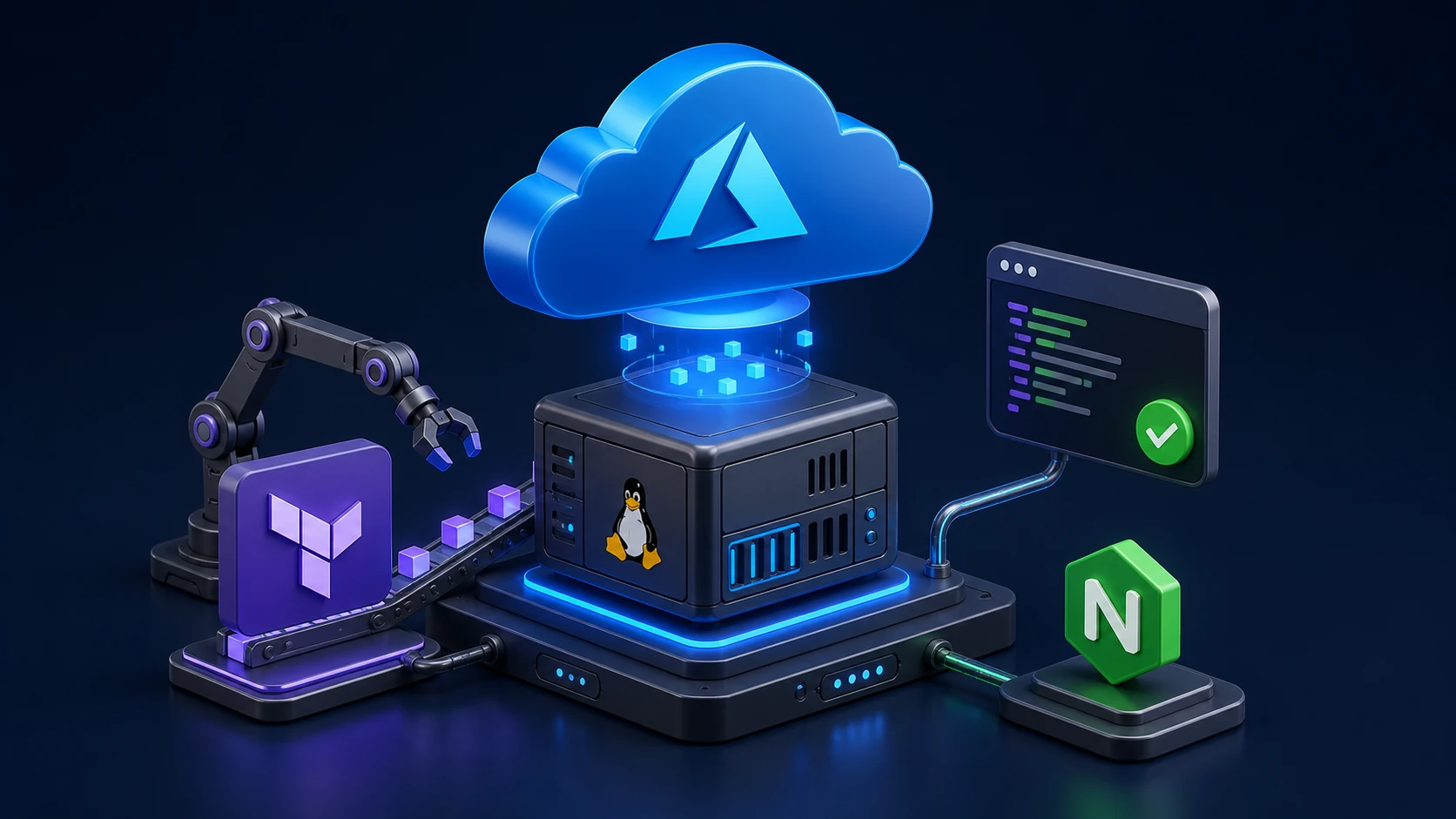
Infrastructure as Code, or IaC, records infrastructure in reviewable, versioned files. In this lab, Terraform describes the Azure resources, while cloud-init prepares Ubuntu on first boot, ending with a page served by Nginx.
All code used in this article is available in the lab repository on GitHub.
What you should know first#
This guide is for readers who have created a VM through the portal, understand basic SSH access and TCP ports, and are getting started with Terraform. CIDR and NSGs are explained as we go.
Local commands use PowerShell on Windows. In Bash, adapt variable assignments and replace Copy-Item with cp and curl.exe with curl; HCL and YAML stay the same.
Expected result#
After terraform apply and initial configuration, you will have an Ubuntu VM serving Nginx on port 80 with SSH key access, without portal clicks. When finished, remove the lab with terraform destroy.
The focus is Azure Compute Infrastructure: provisioning, initialization, and the lifecycle of a VM. This example uses public HTTP and a single instance without high availability. It is not a production architecture.
For administrative access without a public IP on the VM, consider Azure Bastion. Its setup and cost assessment are outside this lab’s scope.
Fundamentals: what Terraform does and what cloud-init does#
Terraform reads files written in HCL, a configuration language, and uses a provider, the component that talks to a service’s API. Here, azurerm connects Terraform to Azure Resource Manager, Azure’s resource management layer.
| Tool | Responsibility in this lab |
|---|---|
| Terraform | Create the resource group, network, rules, IP, interface, and VM |
| cloud-init | Install packages, write the page, and start Nginx inside Ubuntu |
The selected image already includes cloud-init. We will not install Terraform inside the VM. Terraform runs on your computer and sends the infrastructure configuration to Azure.
Infrastructure readiness and application readiness are separate milestones. Azure can report successful provisioning before cloud-init finishes. That is why the HTTP check is part of the procedure, as explained in the custom data documentation.
Prerequisites and reference environment#
- An Azure lab subscription with Contributor permissions at the required scope. Because we create a resource group, access limited to an existing group is insufficient.
- The
Microsoft.ComputeandMicrosoft.Networkresource providers already registered in the subscription. Ask your administrator to register them if needed. - Terraform CLI
1.15.8, Azure CLI installed, and PowerShell withsshandcurl.exeavailable. - A local SSH key pair: the public key goes to the VM, and the private key stays with you. The example uses
~/.ssh/id_ed25519.pub. - Quota and availability for the VM size in your chosen region.
We use ED25519, one of the key formats supported by Azure. If you do not already have this key pair, generate it locally:
ssh-keygen -t ed25519Protect the private key with a passphrase. Accept the default path only if no key already exists there; do not overwrite a key you use elsewhere.
The code was formatted and validated locally with Terraform 1.15.8 and AzureRM 5.3.0 on Windows. No Azure resources were provisioned while preparing this article. Local validation does not establish regional availability or demonstrate a working cloud server.
Provisioning the network foundation and resource group with Terraform#
Use the repository files or create a vmlinux directory with the examples below. Terraform loads every .tf file in the directory as one configuration.
vmlinux/ providers.tf variables.tf network.tf vm.tf outputs.tf cloud-init.yaml terraform.tfvars.example .gitignore .terraform.lock.hcl LICENSE README.mdProvider and authentication#
providers.tf pins the provider version. Automatic resource provider registration is disabled, so the configuration will not attempt to enable services in the subscription during planning. This behavior is documented in the AzureRM provider reference.
# Educational example. Replace placeholders in terraform.tfvars.example locally.terraform {  required_version = ">= 1.15.8, < 2.0.0"
  required_providers {    azurerm = {      source  = "hashicorp/azurerm"      version = "5.3.0"    }  }}
provider "azurerm" {  features {}
  subscription_id                 = var.subscription_id  tenant_id                       = var.tenant_id  resource_provider_registrations = "none"}
Authenticate through Azure CLI and check the selected context. Replace the angle-bracket identifiers with your subscription values only in your local environment:
az login --tenant "<TENANT_ID>"az account set --subscription "<SUBSCRIPTION_ID>"az account show --query "{subscription:name,id:id,tenant:tenantId}" --output tableaz provider show --namespace Microsoft.Compute --query registrationState --output tsvaz provider show --namespace Microsoft.Network --query registrationState --output tsvThe last two commands should return Registered. Service Principal authentication is an option for future automation, but it is outside this lab’s scope.
Check quota usage and limits before running apply:
az vm list-usage --location brazilsouth --output tableCompare usage against both regional and VM family vCPU limits, as described in Azure’s quota documentation. Use the same region as location. Sufficient quota does not guarantee available capacity for the selected size.
Variables and local values#
variables.tf declares the inputs. location selects the region, prefix organizes resource names, and CIDRs describe network address ranges. The subnet must fit inside the VNet and should not overlap networks you intend to connect later.
# Educational example. No real identifiers or private keys belong in this file.variable "subscription_id" {  type        = string  description = "Azure subscription ID. Replace <SUBSCRIPTION_ID> locally."}
variable "tenant_id" {  type        = string  description = "Microsoft Entra tenant ID. Replace <TENANT_ID> locally."}
variable "location" {  type        = string  description = "Azure region. Check VM size availability and your quota."  default     = "brazilsouth"}
variable "prefix" {  type        = string  description = "Short prefix for a dedicated lab, not an existing environment."  default     = "rookie-vm-lab"
  validation {    condition     = can(regex("^[a-z][a-z0-9-]{1,19}$", var.prefix))    error_message = "Use 2 to 20 lowercase letters, digits or hyphens; start with a letter."  }}
variable "vnet_cidr" {  type        = string  description = "Private IPv4 network range."  default     = "10.42.0.0/16"}
variable "subnet_cidr" {  type        = string  description = "Subnet range, contained within vnet_cidr."  default     = "10.42.1.0/24"}
variable "admin_source_cidr" {  type        = string  description = "Your current public IPv4 address followed by /32."
  validation {    condition     = can(cidrnetmask(var.admin_source_cidr)) && endswith(var.admin_source_cidr, "/32")    error_message = "Use a single valid IPv4 address with /32, not 0.0.0.0/0."  }}
variable "ssh_public_key_path" {  type        = string  description = "Public key path only. Example: ~/.ssh/id_ed25519.pub."}
variable "vm_size" {  type        = string  description = "Example VM size; availability and pricing vary by subscription and region."  default     = "Standard_B2s"}
variable "image_version" {  type        = string  description = "Use a specific image version when a fixed base image is required."  default     = "latest"}
Next, save terraform.tfvars.example:
# Educational example. Copy to terraform.tfvars and replace placeholders locally.# Never commit the populated terraform.tfvars file.subscription_id = "<SUBSCRIPTION_ID>"tenant_id = "<TENANT_ID>"location = "brazilsouth"prefix = "rookie-vm-lab"vnet_cidr = "10.42.0.0/16"subnet_cidr = "10.42.1.0/24"admin_source_cidr = "<YOUR_PUBLIC_IPV4>/32"ssh_public_key_path = "~/.ssh/id_ed25519.pub"vm_size = "Standard_B2s"image_version = "latest"Make a local copy on your computer:
Copy-Item terraform.tfvars.example terraform.tfvarsEdit the copy and replace every placeholder. For admin_source_cidr, use your current public outbound IPv4 address followed by /32, which identifies one address. Do not use your laptop’s private IP. If you connect through a VPN, account for its outbound address.
To look up your outbound IPv4 in PowerShell, use the external service ifconfig.me:
curl.exe -4 --fail --silent --show-error https://ifconfig.me/ipIn Bash:
curl -4 --fail --silent --show-error https://ifconfig.me/ipCopy the returned address and append /32. -4 forces IPv4, and /ip returns only the address. Follow your organization’s policies for external lookups; proxies or VPNs with different routes may show an address different from the one SSH uses.
Adjust the public key path. Standard_B2s is an example subject to availability in your subscription and region, with no guarantee of the lowest price.
Network and inbound rules#
A Network Security Group, or NSG, filters traffic using source, destination, protocol, and port. For connections from the internet, we allow SSH only from your /32 and HTTP on port 80. The NSG’s default rules remain in effect, including those allowing traffic within the VNet.
# Educational example. Public HTTP is intentional; SSH is restricted to your IPv4 /32.locals {  tags = {    project     = "azure-vm-terraform-cloudinit"    environment = "lab"    managed_by  = "terraform"  }}
resource "azurerm_resource_group" "lab" {  name     = "rg-${var.prefix}"  location = var.location  tags     = local.tags}
resource "azurerm_virtual_network" "lab" {  name                = "vnet-${var.prefix}"  location            = azurerm_resource_group.lab.location  resource_group_name = azurerm_resource_group.lab.name  address_space       = [var.vnet_cidr]  tags                = local.tags}
resource "azurerm_subnet" "web" {  name                            = "snet-web"  resource_group_name             = azurerm_resource_group.lab.name  virtual_network_name            = azurerm_virtual_network.lab.name  address_prefixes                = [var.subnet_cidr]  default_outbound_access_enabled = false}
resource "azurerm_network_security_group" "web" {  name                = "nsg-${var.prefix}"  location            = azurerm_resource_group.lab.location  resource_group_name = azurerm_resource_group.lab.name  tags                = local.tags
  security_rule {    name                       = "AllowSshFromAdmin"    priority                   = 100    direction                  = "Inbound"    access                     = "Allow"    protocol                   = "Tcp"    source_port_range          = "*"    destination_port_range     = "22"    source_address_prefix      = var.admin_source_cidr    destination_address_prefix = "*"  }
  security_rule {    name                       = "AllowHttpFromInternet"    priority                   = 110    direction                  = "Inbound"    access                     = "Allow"    protocol                   = "Tcp"    source_port_range          = "*"    destination_port_range     = "80"    source_address_prefix      = "Internet"    destination_address_prefix = "*"  }}
resource "azurerm_public_ip" "web" {  name                = "pip-${var.prefix}"  location            = azurerm_resource_group.lab.location  resource_group_name = azurerm_resource_group.lab.name  allocation_method   = "Static"  sku                 = "Standard"  tags                = local.tags}
resource "azurerm_network_interface" "web" {  name                = "nic-${var.prefix}"  location            = azurerm_resource_group.lab.location  resource_group_name = azurerm_resource_group.lab.name  tags                = local.tags
  ip_configuration {    name                          = "primary"    subnet_id                     = azurerm_subnet.web.id    private_ip_address_allocation = "Dynamic"    public_ip_address_id          = azurerm_public_ip.web.id  }}
resource "azurerm_network_interface_security_group_association" "web" {  network_interface_id      = azurerm_network_interface.web.id  network_security_group_id = azurerm_network_security_group.web.id}
Reserve rg-rookie-vm-lab exclusively for this exercise. Prefixes such as vnet, nsg, and nic identify a resource’s purpose. The NIC is the network interface connecting the VM to its subnet, with the public IP and NSG associated with it.
The public IP uses the Standard SKU and Static allocation. The subnet disables implicit outbound access with default_outbound_access_enabled = false, but the VM has an explicit outbound path through the public IP attached to its NIC. This allows package downloads while keeping the NSG’s default outbound rules. See the outbound connectivity documentation.
Creating the Linux VM with SSH key authentication#
Save the complete vm.tf file. It references the YAML file from the next section, so finish creating all files before validating:
# Educational example. Only the public SSH key is passed to Azure.resource "azurerm_linux_virtual_machine" "web" {  name                            = "vm-${var.prefix}"  computer_name                   = "vm-${var.prefix}"  location                        = azurerm_resource_group.lab.location  resource_group_name             = azurerm_resource_group.lab.name  size                            = var.vm_size  admin_username                  = "azureuser"  disable_password_authentication = true  network_interface_ids           = [azurerm_network_interface.web.id]  custom_data                     = filebase64("${path.module}/cloud-init.yaml")  tags                            = local.tags
  admin_ssh_key {    username   = "azureuser"    public_key = file(pathexpand(var.ssh_public_key_path))  }
  os_disk {    name                 = "osdisk-${var.prefix}"    caching              = "ReadWrite"    storage_account_type = "StandardSSD_LRS"  }
  source_image_reference {    publisher = "Canonical"    offer     = "ubuntu-24_04-lts"    sku       = "server"    version   = var.image_version  }
  boot_diagnostics {}
  # Attach the NSG before boot so the VM starts with its inbound rules in place.  depends_on = [azurerm_network_interface_security_group_association.web]}
The image is Ubuntu Server 24.04 LTS, generation 2, x64. The Canonical:ubuntu-24_04-lts:server combination follows Canonical’s official image catalog. We are choosing an established LTS release without requiring it to be the newest one.
latest keeps the lab approachable, but it may resolve to a different image on another date. To repeat a specific base image, set image_version to a version available in your region. Ubuntu packages also change over time: reproducible infrastructure does not mean a byte-for-byte identical operating system.
file(pathexpand(...)) expands ~ and reads only the public key. There is no administrator password in this example, and disable_password_authentication = true disables SSH password authentication. Never put a private key in HCL, YAML, or outputs.
The empty boot_diagnostics block enables boot diagnostics with managed storage. depends_on ensures that the NSG association exists before the VM is created. References between resources already establish the other dependencies.
In outputs.tf, expose only the values needed for validation and cleanup:
# Educational example. Outputs contain no private keys or passwords.output "public_ip_address" {  description = "Public IPv4 address used for HTTP and SSH validation."  value       = azurerm_public_ip.web.ip_address}
output "resource_group_name" {  description = "Dedicated resource group to check before and after cleanup."  value       = azurerm_resource_group.lab.name}
Automating with cloud-init: Nginx on first boot#
Create cloud-init.yaml in the same directory:
#cloud-config# Educational example. Never put secrets in custom_data; base64 is not encryption.package_update: truepackages:  - nginx
write_files:  - path: /var/www/html/index.html    owner: root:root    permissions: '0644'    # Write after packages are installed, before runcmd runs.    defer: true    content: |      <!doctype html>      <html lang="en">        <head>          <meta charset="utf-8">          <meta name="viewport" content="width=device-width, initial-scale=1">          <title>RookieOps Azure VM Lab</title>        </head>        <body>          <h1>RookieOps: Nginx is ready!</h1>          <p>Provisioned with Terraform. Configured with cloud-init.</p>        </body>      </html>
runcmd:  - [nginx, -t]  - [systemctl, enable, --now, nginx]
The first line identifies the document as cloud-init configuration. package_update refreshes the package index without requesting a full system upgrade. packages installs Nginx and its dependencies.
write_files creates the page, readable by the server and writable only by the administrator. With defer: true, writing waits until packages are installed. The runcmd commands check the configuration and enable Nginx now and on subsequent boots.
The runcmd module belongs to the config stage, but only writes a script there. The scripts_user module executes it during the final stage. Ubuntu’s default configuration orders these modules as package_update_upgrade_install, write_files_deferred, then scripts_user: packages, page, and commands. See the module reference.
On Ubuntu, installing Nginx normally starts and enables the service, depending on package scripts and local policies. This is not a general guarantee of apt. We keep systemctl enable --now nginx explicit, even when the service is already active. See the Debian policy for services.
In Terraform, filebase64() reads the YAML and encodes it for custom_data, as required by the API. Base64 provides no confidentiality. Keep tokens, passwords, and private keys out of this payload.
The modules used here run once per instance during initial configuration. Cloud-init also has stages that execute on later boots, but restarting the VM does not automatically reapply this recipe. Azure’s Custom Script Extension is a separate mechanism for running scripts and is not used in this example.
Changing custom_data on this resource forces VM replacement, as documented in the azurerm_linux_virtual_machine reference. Review the plan before confirming a YAML change: this lab’s operating system disk is disposable.
Validation and troubleshooting#
After saving all files and filling in terraform.tfvars, run:
terraform initterraform fmt -check -recursiveterraform validateterraform planterraform applyinit installs the provider and creates .terraform.lock.hcl, which belongs in version control. validate checks the local configuration. The plan queries Azure and shows the proposed changes; it does not test the Nginx installation.
For a fresh directory without existing resources, expect eight Terraform resources to be created. The operating system disk is part of the VM definition. During apply, check the subscription, region, rules, and proposed actions again before entering yes. We do not use automatic approval.
Confirming the result#
Get the IP address, connect through SSH, and wait for cloud-init:
$publicIp = terraform output -raw public_ip_address$sshKeyPath = Join-Path $env:USERPROFILE '.ssh\id_ed25519'ssh -i "$sshKeyPath" "azureuser@$publicIp" 'sudo cloud-init status --wait --long'curl.exe --fail --show-error --include --connect-timeout 5 --max-time 15 "http://$publicIp"ssh -i "$sshKeyPath" "azureuser@$publicIp"In PowerShell on Windows, Join-Path builds the path from $env:USERPROFILE, without relying on ~ expansion for native commands. In Bash, use ~/.ssh/id_ed25519 as the -i argument.
Use the private key matching the public key you supplied. On the first connection, verify the server’s identity before accepting its host key. If SSH is not available yet, wait briefly and try again.
Success means cloud-init has completed without errors, HTTP returns 200 with RookieOps: Nginx is ready!, and you can log in as azureuser. A default Nginx page proves the HTTP server is working, but does not prove that your custom page was written.
Inside the SSH session, these commands help locate failures:
sudo cloud-init status --longsudo cloud-init schema --systemsudo tail -n 100 /var/log/cloud-init-output.logsudo tail -n 100 /var/log/cloud-init.logsudo nginx -tsystemctl is-active nginxsystemctl is-enabled nginxsudo ss -ltnp 'sport = :80'curl --fail --show-error http://127.0.0.1exit| Symptom | What to check first |
|---|---|
| SSH times out | Current public IP, source /32, NSG association, and any VPN |
Permission denied (publickey) | Username azureuser and whether the key pair matches |
| HTTP fails externally but works inside the VM | Inbound TCP/80 rule, target IP, and local firewall |
| cloud-init reports a YAML error | Space indentation, first line, and schema output |
| Package installation fails | DNS, repository connectivity, and package manager logs |
| VM creation fails | Permissions, Azure Policy, provider registration, quota, image, and size availability |
Read the error before repeating apply: fixing HCL does not automatically repair a failed package installation inside an existing VM. An SSH session can help with diagnosis, but useful configuration changes should go back into code instead of becoming another undocumented adjustment.
If SSH is unavailable, Boot diagnostics can help investigate startup. The Serial Console is another option, but interactive login requires a local account with a password and appropriate permissions. This lab does not create that account, so the console is not a ready-to-use alternative login method.
Terraform state, sensitive variables, and good practices#
terraform.tfstate maps addresses in your code to existing resources. Without it, Terraform loses the relationship needed to manage what it created. Do not delete state to try to fix an error, and do not commit it to Git.
State and saved plans can contain sensitive data. sensitive = true hides values in some output, but does not encrypt them in storage. terraform.tfvars is also plain text: excluding it from Git prevents accidental repository exposure, but does not replace access controls. See HashiCorp’s guidance on sensitive data.
In this example, IDs identify the context and are not credentials. No secrets are needed in the files. For teamwork, later adopt an Azure Storage remote backend with access controls and state locking.
Use this .gitignore from the start:
# Terraform cache and local state.terraform/terraform.tfstate.d/*.tfstate*.tfstate.*.terraform.tfstate.lock.info
# Local input values and backend settings*.tfvars*.tfvars.json*.tfbackend!*.tfvars.example!*.tfvars.json.example!*.tfbackend.example
# Saved plans can contain sensitive values; use the .tfplan extension*.tfplan*.tfplan.**.plan*.plan.*tfplantfplan.*plan.out
# Terraform crash reports and local overridescrash.logcrash.*.logoverride.tfoverride.tf.json*_override.tf*_override.tf.json
# Local credentials and environment settings.terraformrcterraform.rc.terraform.d/.azure/.ssh/.env.env.*!.env.example*.pem*.key*.pfx*.p12id_rsaid_dsaid_ecdsaid_ecdsa_skid_ed25519id_ed25519_sk
# Editor and operating system files.vscode/.idea/*.swp*.swo*~.DS_StoreThumbs.dbDesktop.ini
# Keep the provider lock file and example inputs in version control!.terraform.lock.hcl
Keep .tf files, YAML, the example variables file, and .terraform.lock.hcl in version control. Your recurring workflow is to format with terraform fmt, validate, review the plan, and then apply. The private key stays out of that workflow.
Cleaning up resources and managing costs#
The VM, disk, public IP, and traffic can incur charges. Consult the official Azure pricing calculator before creating the environment. Shutting down Ubuntu does not remove resources, and deallocating the VM does not stop disk charges.
The Standard/Static public IPv4 used here is billed hourly, including when the VM is stopped or deallocated and when the IP is unassociated. To stop those charges, delete the public IP resource, as this lab’s terraform destroy does. See the official IP address billing rules.
Before cleanup, save the resource group name: the outputs will be removed.
$resourceGroup = terraform output -raw resource_group_nameterraform plan -destroyterraform destroyaz group exists --name $resourceGroupterraform state listReview the plan and confirm destruction only for this lab. The expected result is false for the group’s existence and no entries in state. If the operation fails or is interrupted, investigate the remaining resources before treating cleanup as complete.
destroy removes the VM and operating system disk, so any files you created there will be lost. Do not mix manually created resources into this group. Terraform does not automatically discover everything created outside its configuration, and deleting resource groups deserves extra care.
Before running the lab, confirm:
- subscription, permissions, registered providers, and quota;
- estimated cost, region, and selected VM size;
- correct public key, restricted SSH, and absence of secrets;
- demonstration-only HTTP content with no personal data;
- state preserved until cleanup finishes and resource removal checked in Azure.
References#
- Microsoft Learn: Linux VM with Terraform.
- HashiCorp: Linux VM resource in AzureRM 5.3.0.
- Microsoft Learn: cloud-init on Azure.
- cloud-init: module reference.
- Canonical: Ubuntu images on Azure.
Conclusion#
The decisions behind your VM, its network, and its initial configuration are now recorded in reviewable files. The exercise is complete when you verify Nginx, know where to investigate a failure, and confirm that the resources have been removed.
For a next step, change only the page in the YAML and inspect the replacement plan without applying it. Understanding a change’s impact before executing it is a useful skill far beyond this first server.